The quick recipe
- ISO 800, f/4, manual mode, manual focus at infinity
- Shutter speed: 20 seconds. Adjust up or down for your focal length with the Rule of 500.
- Intervalometer on, 1 to 2 seconds between shots
- Aim at Polaris for circles, or anywhere for arcs
- Shoot for 45 minutes at least. Three hours is the sweet spot.
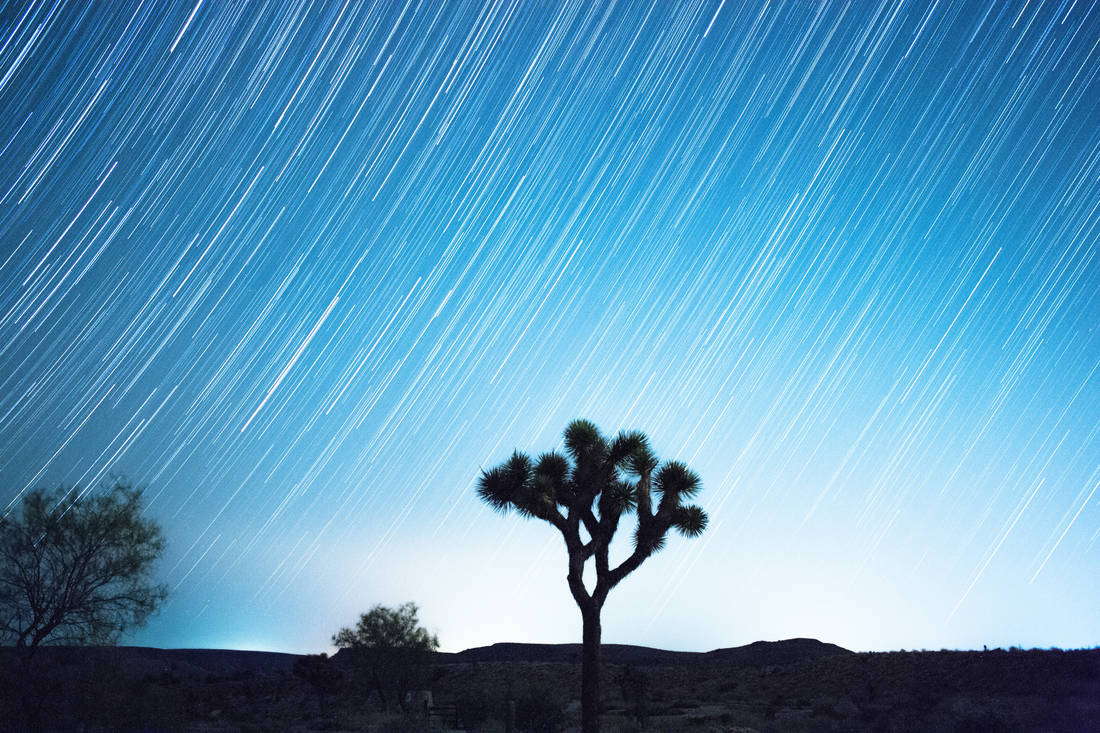
A star trail image shows the stars as long, curved streaks across the sky. Earth turns, the stars appear to move, and a camera that keeps taking pictures records the whole path. You do not shoot one long exposure. You shoot hundreds of short ones and blend them together afterward on your computer. That is easier on the camera and gives you much cleaner results. Star Trail CleanR, the free app on this site, does the blending for you.
1. What you need
- A camera with manual controls. A DSLR or mirrorless camera is ideal.
- A wide-angle lens. The wider the lens, the more sky you fit in the frame.
- A sturdy tripod. The camera cannot move for the whole shoot.
- An intervalometer. This is a remote that fires the camera again and again on its own. Many cameras have one built in. Check your menu for "interval timer" or "time-lapse."
- A fully charged battery, plus a spare. Cold nights drain batteries quickly.
- A flashlight with a red mode, and a chair. You will be standing out there a while.
2. Find a dark sky
Dark skies make the best star trails. City lights wash out the fainter stars, and a bright moon does the same. Pick a night near the new moon, and drive away from town if you can.
If you are new to this, join a local astronomy club at one of their star parties. There is safety in numbers, and plenty of people there will gladly teach you what you are looking at.
3. Start with these camera settings
Put the camera in manual mode and begin here. You can adjust from these once you see your first test shot.
| Setting | Start with |
|---|---|
| ISO | 800. This keeps the star colors and holds the noise down. |
| Aperture | f/4. One nice thing about star trails is that you don't need the fastest lens. |
| Shutter speed | 20 seconds is a good starting point. Adjust up or down based on the Rule of 500 (see below). |
| Gap between shots | 1 to 2 seconds, just long enough for the camera to save each photo. |
| File type | RAW for the most editing room. JPEG also works well. |
| Focus | Switch your lens to manual focus (MF). Set it to infinity, or aim at the brightest star and focus on it with live view zoomed in. |
The Rule of 500: picking your shutter speed
Divide 500 by your lens's focal length in millimeters. The answer is the longest exposure, in seconds, before the stars start to streak within a single frame.
Example: you have a 24 mm lens. 500 ÷ 24 = about 20, so set the shutter to 20 seconds. Here are the numbers for popular lenses:
| Your lens | Shutter speed |
|---|---|
| 14 mm | 35 seconds |
| 16 mm | 30 seconds |
| 20 mm | 25 seconds |
| 24 mm | 20 seconds |
| 35 mm | 14 seconds |
On a crop-sensor camera, multiply the lens by 1.5 first (1.6 for Canon). A 10 mm lens on a Canon crop camera acts like a 16 mm lens, so use 30 seconds.
4. Frame the shot
The most interesting star trails have something in front of the stars: a tree, a building, a rock formation, a telescope. Use a phone app such as Sky Map to find Polaris, the North Star, and aim at it if you want the stars to sweep in circles. In the Northern Hemisphere they turn counterclockwise around it. Aim somewhere else and the trails become long, gentle arcs.
Take a test shot first. Check that the exposure looks right and the framing is what you want. Then make sure your tripod is steady and tightened down.
5. Shoot
Set the intervalometer to keep shooting until you stop it, and start it. Then leave the camera alone.
- Do not bump the tripod or touch the camera while it is shooting.
- Keep flashlights and car headlights out of the frame.
- Turn the rear screen brightness down and switch off image preview to save battery.
- Turn off long exposure noise reduction. It makes the camera spend as long again after each shot, which leaves a gap in your trails.
6. Remove the airplane and satellite trails
Sooner or later a plane or satellite crosses your sky, and because the stack keeps the brightest pixels, it becomes a bright line across your finished image. For some pictures that is a fun effect. Most of the time you want it gone.
The old way is to open every frame the plane appears in and paint over the line by hand. Then you stack again, and then you hunt for the ones you missed. It works, but it is slow.
Star Trail CleanR does this step for you. Clean your frames first, then create the star trail, so the airplane lines never reach the final image.
7. Create the star trail
Back home, a stacking step blends all your frames into a single picture, keeping the brightest pixels from each one. That is how the dots become trails.
You can do this right in Star Trail CleanR. When cleaning finishes, the Star Trail & Timelapse window opens. Choose your options, click Create Star Trail, and your finished image appears in the window. The same frames can also make a timelapse video.
Prefer another tool? The cleaned frames are ordinary image files, so any stacker works, such as StarStaX, a free stacker for Mac and Windows. In Photoshop, load the frames as layers and set the blend mode to Lighten.
Clean your frames and create your star trail in one program
Star Trail CleanR finds the airplane and satellite trails in your frames and repairs them using the neighboring photos, so the stars stay and the trails go. Then it creates your star trail image, and a timelapse if you want one. It is free.
Download Star Trail CleanR freeCurious how the cleaning works? Read the plain-English technical write-ups.